
Somic Eagle App Documentation
Somic Eagle App is Somic’s application designed for monitoring, diagnosing, and managing the condition of Somic packaging machines. It integrates fault detection, video recording, and data management functionalities to enhance operational efficiency and reduce machine downtime. Below is a comprehensive functional overview of the application and its capabilities.
Functional Description
1. Fault Monitoring and Video Capture
- The system continuously monitors packaging machines using integrated Programmable Logic Controllers (PLCs).
- On detecting a fault, the PLC generates an OPC-UA trigger message, prompting the system to:
- Record video via the event cameras installed in the machine.
- Retrieve these videos and associated metadata for further analysis.
2. Fault Tracking and Management
- The system maintains a comprehensive fault log, tracking all occurrences up to a user-configured limit.
- To optimize storage, the Clean Up Service removes older fault records and their media files when the storage limit is approached.
- Users are notified proactively when storage is nearing capacity.
3. Backup and Additional Data Management
- The Backup Service enables users to securely export all fault data, including media, to an external storage device.
- Users can enrich fault records by adding supplementary information, ensuring detailed documentation for analysis and troubleshooting.
4. Web-Based Accessibility
- With a user-friendly web-based interface, the application can be accessed from any web browser via the IP address of the hosting IPC.
- Its simple design ensures ease of use for both technical and non-technical users.
Technical Components
1. Flecs Core
- A foundational platform that facilitates user access and seamless integration with automation systems.
- More information: What we do | FLECS
2. OPC-UA (Open Platform Communications - Unified Architecture)
- Implements the IEC 62541 standard for secure and efficient data exchange between machines and the cloud.
- More information: Unified Architecture - OPC Foundation
3. Debian Operating System
- Provides a stable, reliable, and secure foundation for the application, ensuring uninterrupted operation.
- More information: Debian Project
4. Advantech IPC
- Hosts the MettEagle application on a robust industrial platform, running exclusively on Debian OS for maximum reliability.
System Accessibility and Performance
MettEagle ensures real-time monitoring and data accessibility through its intuitive interface. It combines fault detection, video analytics, and data management with efficient storage practices to deliver a comprehensive solution for machine maintenance and monitoring.
This application is integral to Somic’s packaging operations, delivering robust tools to minimize downtime, streamline troubleshooting, and maintain operational excellence.
Setting Up FTP server
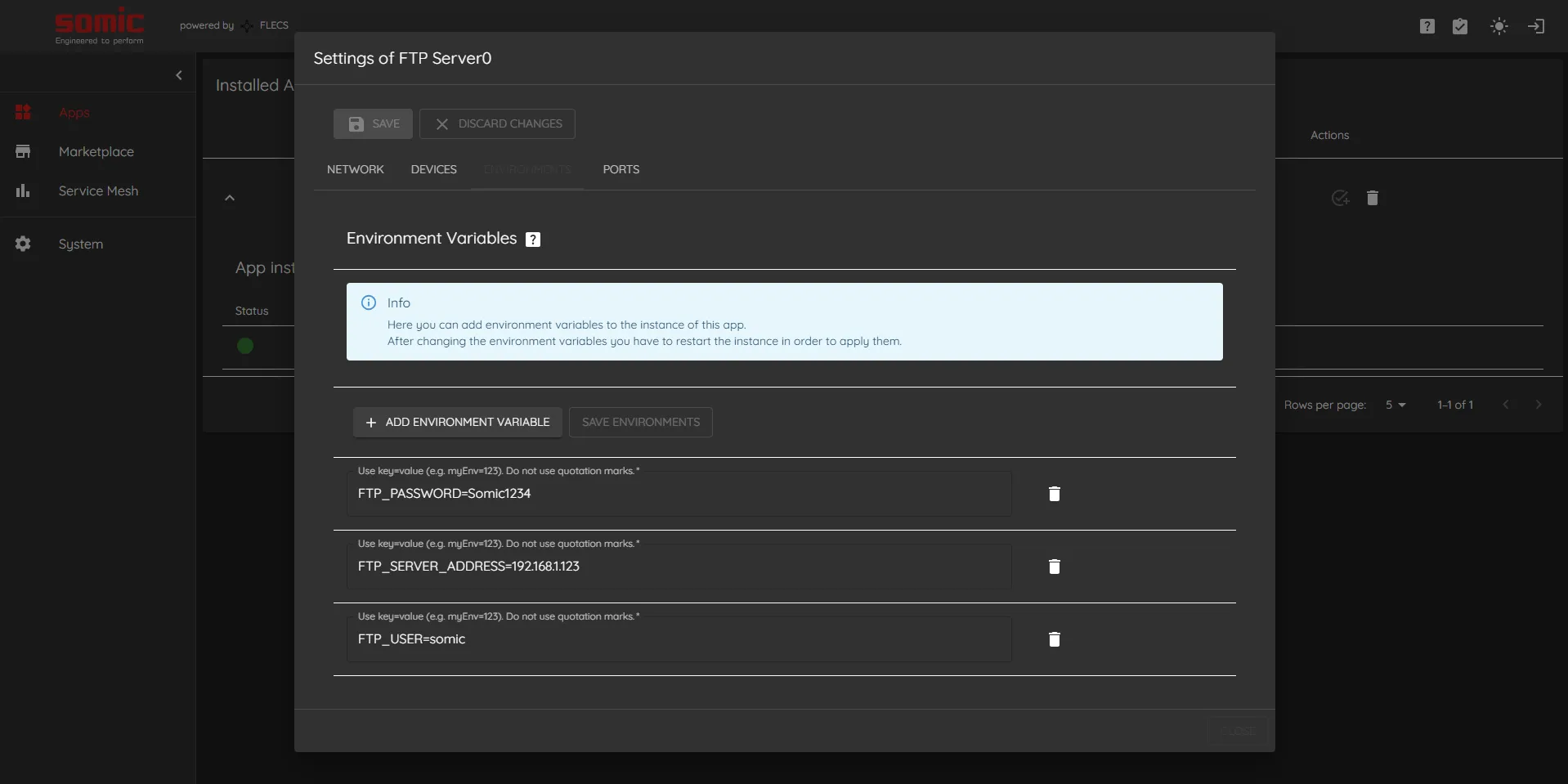
When events cameras are triggered, it uploads the video footage to a FTP server in the IPC. Below are the configuration that needs to be make in the FTP App settings under environments.
FTP_PASSWORD=<IPC_USER_PASSWORD>
FTP_SERVER_ADDRESS=<IPC_IP>
FTP_USER=<IPC_USER>
Adding a New Camera
Follow these straightforward steps to add a new camera to your system:
-
Open Settings:
- Navigate to the ‘Settings’ menu.
- Scroll down to the ‘Cameras’ section.
-
Input New Camera Information:
- Enter the camera’s serial number, ensuring it matches the physical camera.
- Provide a name and a short name for the camera to help identify it easily.
- Assign the camera to a specific Fault Area to enable proper monitoring.
-
Configuring the Sick Event Camera:
- Open the Sick event camera console on a web browser and login as Maintenance user.
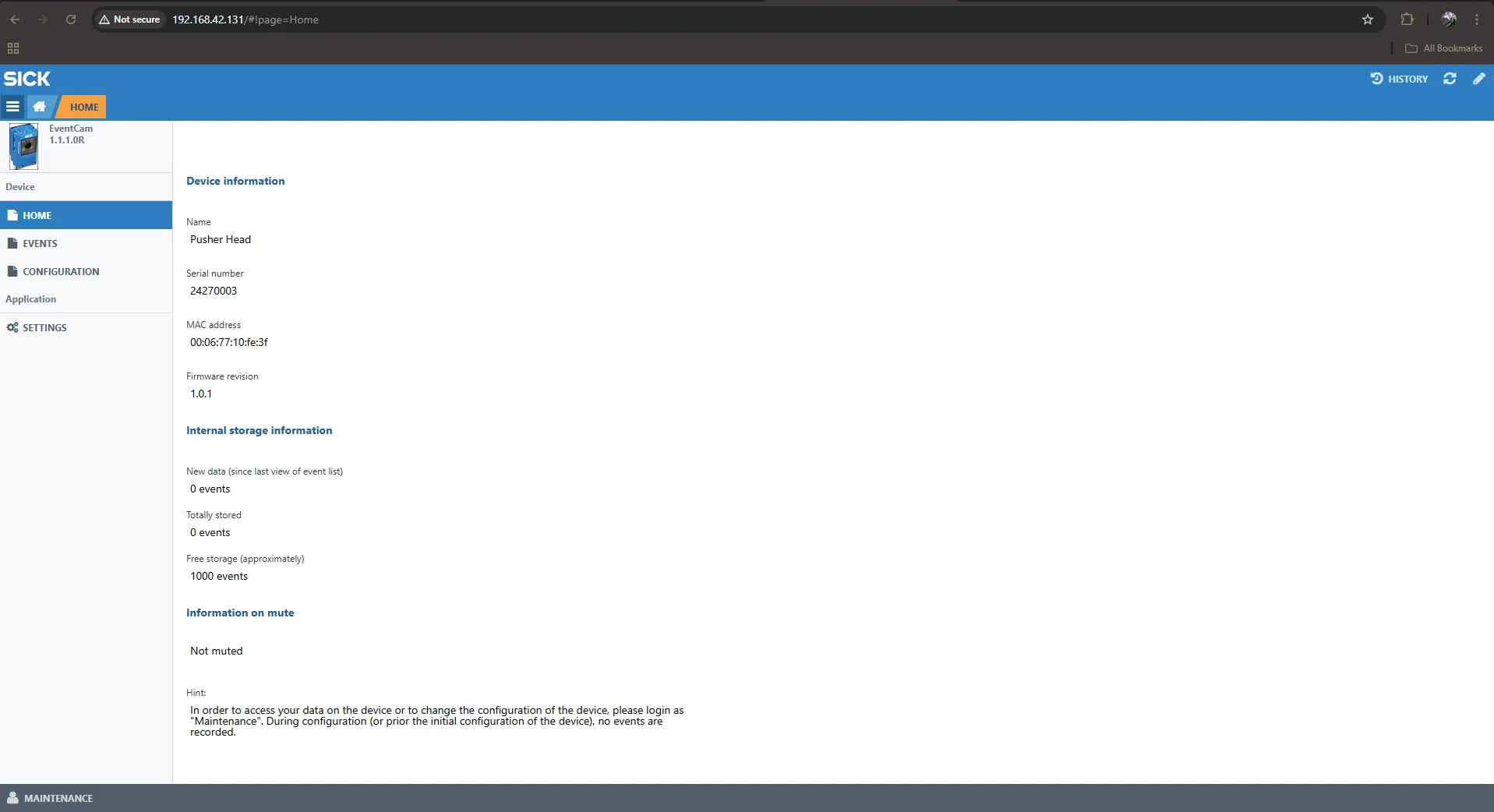
- Go to configuration.
- Click next and go to time configuration and set the date and time to match the IPC date and time.
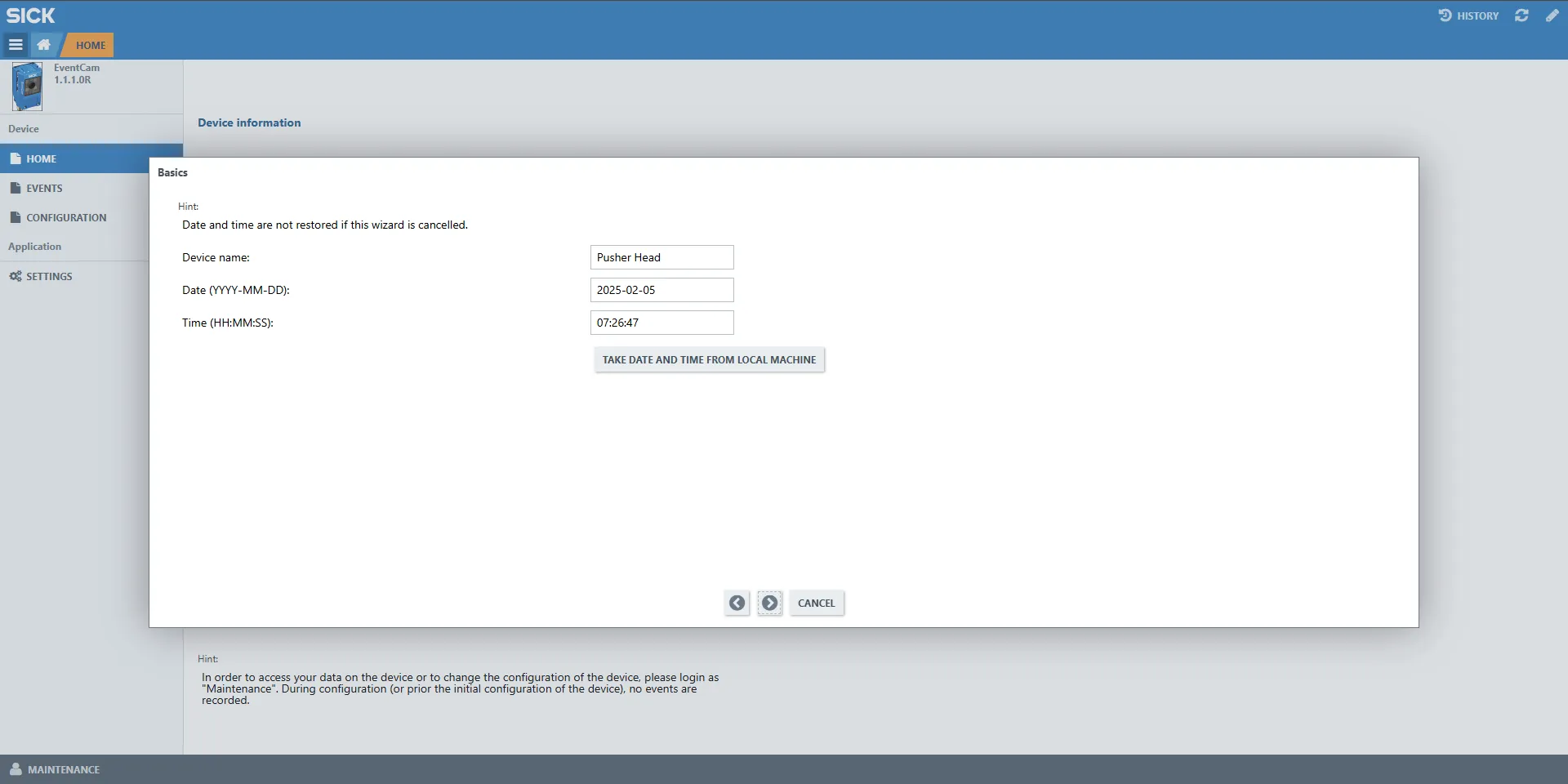
- Then go the storage configuration
- Set the Target IP address as the IP address of the IPC.
- Set the Target Port as
21 - Set the Path as
/[SerialNumber]/where SerialNumber is the event camera serial number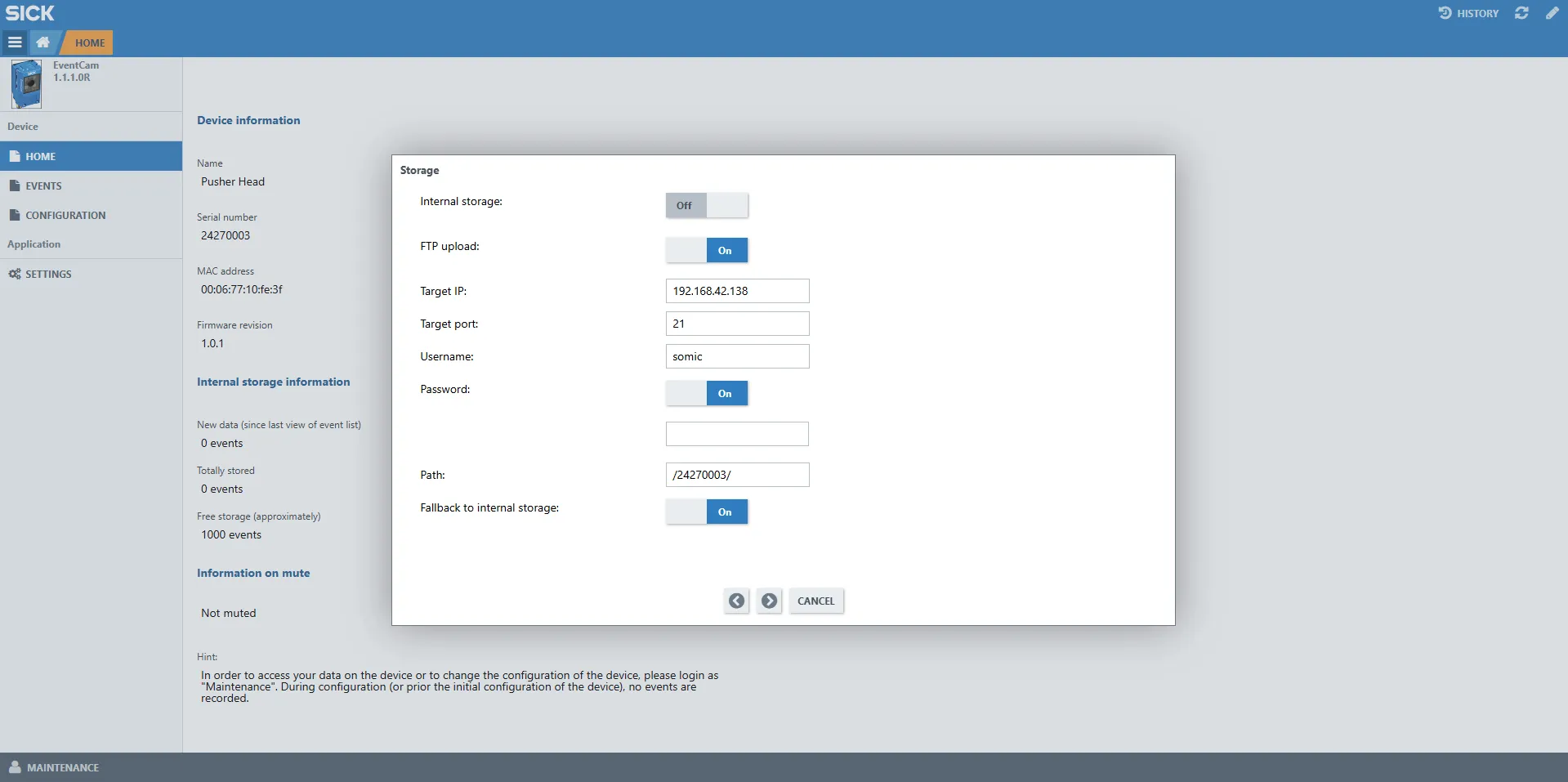
- Go till the last configuration page and click Finish to save the configurations
NOTE: The date and time and the FTP location should be configured correctly for proper functioning of the app
- Open the Sick event camera console on a web browser and login as Maintenance user.
NOTE: It is important that the serial number of the camera is correctly entered to the settings.
Further reading
- Read Somic PackConnect Guide