
Somic PackConnect App Documentation & Commissioning Manual
This manual provides step-by-step instructions for installing, configuring, and commissioning the Somic PackConnect App on your IPC system via the FLECS platform.
Prerequisites
Before beginning the installation, ensure the following requirements are met:
- FLECS Platform: FLECS must be fully installed, running, and properly licensed.
- Directory Structure: Create the required Somic PackConnect application directory on the host IPC:
Terminal window mkdir -p /home/somic/apps/labrador - Notis App Dependency: Somic PackConnect requires the Notis app for handling email notifications.
1. Notis App Installation
Follow these steps to install and configure the Notis notification service:
- Open the FLECS web interface.
- Go to Browse and search for:
"Notis: Industrial Notification Made Easy" - Select the newest available version (e.g.,
0.5.3) and click Install. - Once installation completes, navigate to Installed.
- Locate Notis: Industrial Notification Made Easy, click the three dots (⋯), and select Configure (⚙️ Gear symbol).
- Navigate to Ports -> Add Port Mapping and configure the following:
- Host Port:
8085 - Container Port:
80
- Host Port:
- Save the settings. Notis is now installed, configured, and running.
2. Somic PackConnect App Installation
- In FLECS, open the Browse section and search for:
"Somic PackConnect App" - Select the newest available version (e.g.,
v0.4.4) and click Install. - Once installation completes, navigate to Installed.
- Locate Somic PackConnect App, click the three dots (⋯), and select Configure (⚙️ Gear symbol).

- Navigate to Ports -> Add Port and add the following two port mappings:
- Mapping 1:
- Host Port:
5222 - Container Port:
5222
- Host Port:
- Mapping 2:
- Host Port:
9080 - Container Port:
8081
- Host Port:
- Mapping 1:
- (Optional - for HMI deployment):
- Go to Environment Variables.
- Change
Kiosk__LauncherEnabledto"true"if the installation is intended for HMI usage.
- (Optional - for Schneider PLCs):
- Go to Environment Variables.
- Change
PugSettingsEnabledto"true"if the installation is intended for Schneider PLCs.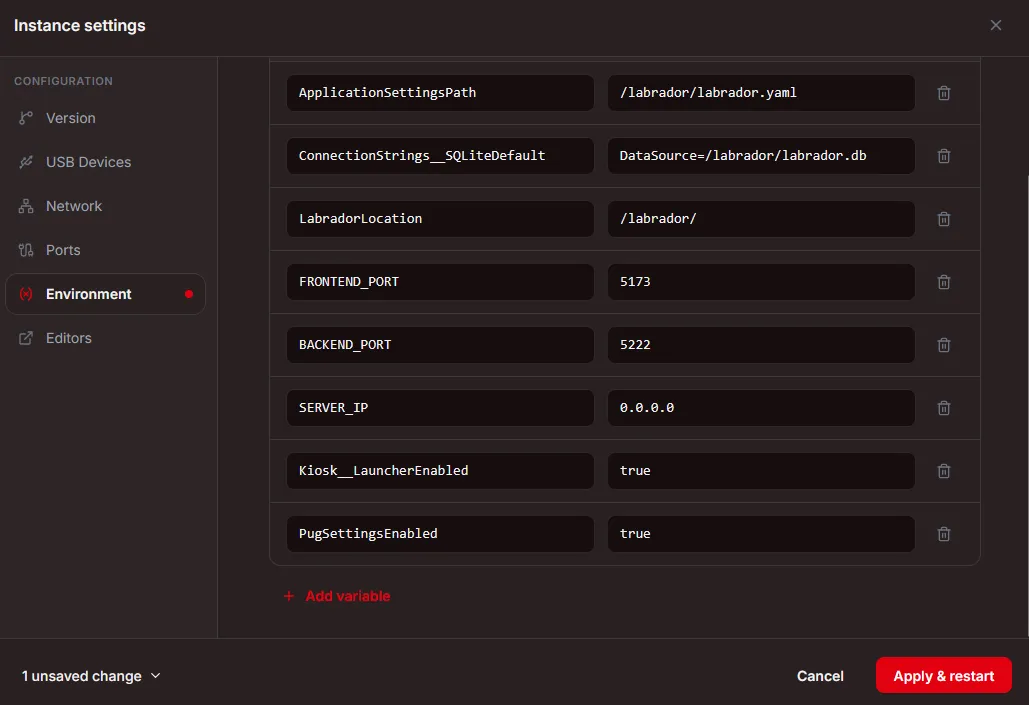
- Apply settings & restart.
3. Configuration & Settings Setup
Access the Somic PackConnect web interface by opening a browser and navigating to:
http://{IPC-IP-Address}:9080
Navigate to the Settings page and configure the following parameters:
System & App Endpoints
| Setting Name | Description | Example / Format |
|---|---|---|
| OPC-UA IP Address | OPC-UA endpoint address of the PLC | opc.tcp://192.168.42.196:4840 |
| Eagle IP Address | IP address and port of the Eagle application | {IPC-IP-Address}:8081(e.g., 192.168.42.220:8081) |
| Pug IP Address | IP address and port of Pug (for Schneider) | {HMI-IP-Address}:3000(e.g., 192.168.42.197:3000) |
| Notis IP Address | IP address and port of the Notis app for email service | http://{IPC-IP-Address}:8085(e.g., http://192.168.42.220:8085) |
Email & SMTP Configuration
| Setting Name | Description | Details / Example |
|---|---|---|
| Email Server IP Address | IP address of the customer’s mail server | Provided by customer network IT |
| SMTP Auth Mechanism | Authentication mechanism for mail server | Provided by customer network IT |
| Connection Type | Security connection type (SSL/TLS/STARTTLS/None) | Provided by customer network IT |
| Email Server Authentication Identity | E-Mail address of customer-created SOMIC email account | User account provided by customer |
| Email Server Secret | Password of customer-created SOMIC email account | Password for above account |
| Sender Name | Display name of the outbound email sender | e.g., Somic or Somic N-XXXXXX-XXX |
| SOMIC Emailing Recipient List | Target SOMIC email addresses for data reports | e.g., somic.connect@somic.de |
| Internal Email Recipient List | Target customer email addresses for reports | List of customer recipient emails |
Pug Configuration (Schneider PLCs)
[!NOTE] This section is only available in the settings if the environment variable
PugSettingsEnabledis set to"true"in the Somic PackConnect FLECS app instance configuration.
| Setting Name | Description | Example / Default |
|---|---|---|
| Schneider Diagnostics Path | Full path to the Schneider Electric Diagnostics .exe file on the HMI | C:\Program Files (x86)\Schneider Electric\EcoStruxure Machine Expert\Tools\Diagnostics\Diagnostics.exe |
| Log Path | Target directory/path on the HMI for storing log files | C:\Logs\HMI |
| Auth Required | Toggle / checkbox indicating whether machine access requires authentication | true / false |
| Username | Username for machine access (when authentication is enabled) | admin |
| Password | Password for machine access (when authentication is enabled) | •••••••• |
| Machine IP | IP address of the target controller / machine | 192.168.42.196 |
- Save Pug Config: Click to apply and store the updated settings to the Pug service.
- Reload Config: Click to reload and fetch the current configuration from the Pug service.
4. Verification & Testing
- Click Save Changes to store your configuration.
- Click Compare SMTP to run a diagnostic check and verify that the email notification service settings are consistent.
Sending a Test Email
To verify that outbound email notifications are working end-to-end:
- In the Somic PackConnect web interface, navigate to the Messages page by clicking “✉️ Messages”.
- Click the Send test message button located in the top right corner of the page.
- Check the configured recipient email addresses to confirm successful receipt of the test notification.