
Pug App Documentation & Installation Manual
This manual provides step-by-step instructions for installing, configuring, and commissioning the Somic PackConnect (Pug) Windows service on Windows (x64) systems.
Prerequisites
Before beginning the installation, ensure the following requirements are met:
- Operating System: Windows 64-bit (x64) with administrative privileges.
- Installer Package: The
pug.msiinstallation package provided by Somic R&D. - User Account: Access to the target user profile directory (
C:\Users\<username>\).
1. Service Installation
Follow these steps to install the Pug service via the MSI package:
- Locate and double-click the
pug.msiinstaller file. - If prompted by Windows User Account Control (UAC), click Yes to grant permissions.
- Follow the setup wizard instructions and click Finish once the process is complete.
2. Service Verification
Verify that the Windows service has been registered correctly:
- Open the Windows Start Menu and type
"Services". - Launch the Services desktop app.
- Scroll through the services list and locate Pug Windows Service.
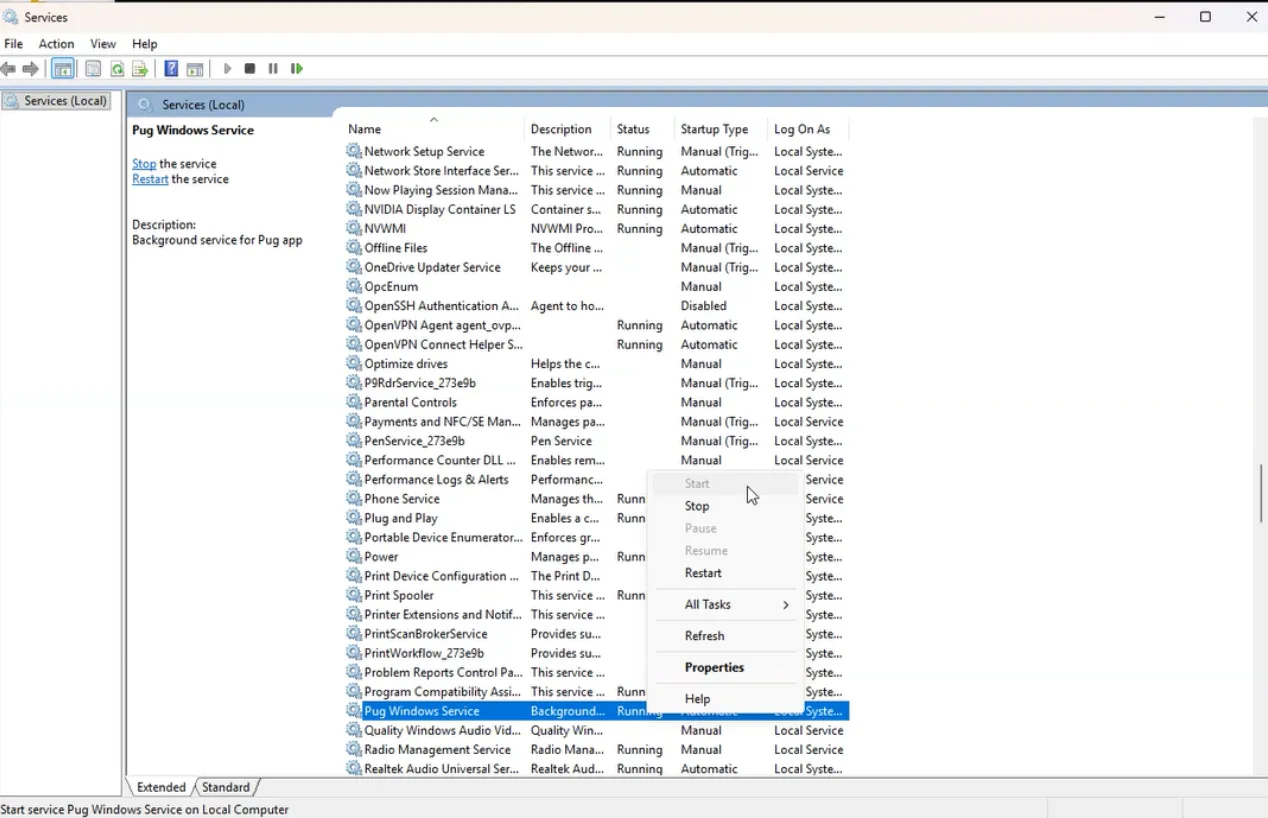
[!NOTE] If Pug Windows Service does not appear in the list, the installation may have failed. Run the MSI installer again with administrator privileges.
3. Directory & Storage Setup
The Pug service requires a dedicated data directory to store configuration, databases, and diagnostics:
- Open File Explorer.
- Navigate to your user documents directory:
Terminal window C:\Users\<username>\Documents\ - Create a new folder named
somic. - Ensure the full path matches:
Terminal window C:\Users\<username>\Documents\somic
[!IMPORTANT] Replace
<username>with your actual Windows username.
4. Environment Variable Configuration
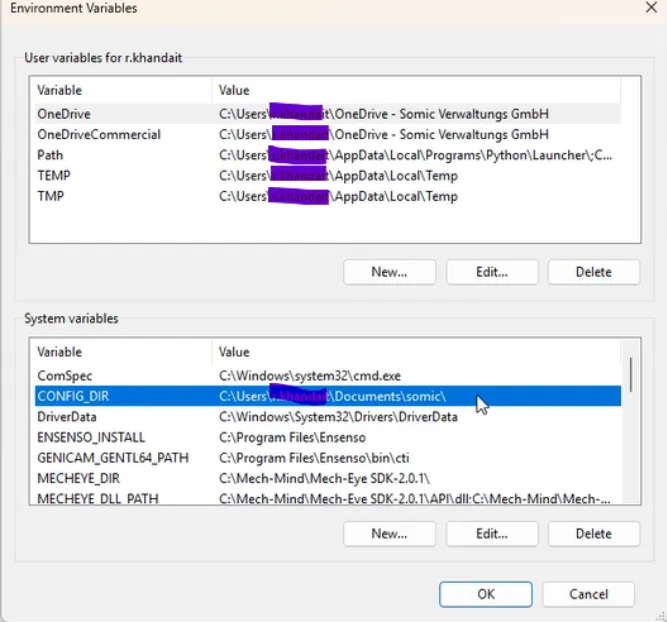
Inform the Pug service of its data directory by setting the CONFIG_DIR system environment variable:
- Open the Start Menu and search for
"Environment Variables". - Select Edit the system environment variables.
- In the System Properties dialog, click Environment Variables….
- Under System variables, click New… and configure the following:
| Variable Name | Value / Path | Description |
|---|---|---|
CONFIG_DIR | C:\Users\<username>\Documents\somic | Base configuration and data directory for Somic services |
- Click OK on all dialog windows to apply and save the changes.
5. Windows Defender Firewall Configuration
To allow external applications (such as Somic PackConnect on the IPC) to communicate with the Pug service over port 3000, an inbound firewall rule must be configured in Windows Defender Firewall with Advanced Security:
GUI Configuration
- Open the Start Menu, search for
"Windows Defender Firewall with Advanced Security"(or runwf.msc), and open it. - In the left navigation pane, click Inbound Rules.
- In the right Actions pane, click New Rule….
- On the Rule Type screen, select Port and click Next.
- Select TCP and specify Specific local ports:
3000, then click Next. - Select Allow the connection and click Next.
- Apply the rule to all relevant network profiles (Domain, Private, Public) and click Next.
- Enter a name for the rule (e.g.,
Pug Windows Service (Port 3000)) and click Finish.
PowerShell Alternative (Run as Administrator)
Alternatively, you can create the firewall rule via PowerShell:
New-NetFirewallRule -DisplayName "Pug Windows Service (Port 3000)" -Direction Inbound -LocalPort 3000 -Protocol TCP -Action Allow6. Service Management
Start the Pug service once the directory, environment variables, and firewall rules are configured:
- Return to the Services management console.
- Locate Pug Windows Service.
- Right-click on Pug Windows Service and select Start.
(Optional) To stop the service at any time during maintenance, right-click Pug Windows Service and select Stop.
7. Verification & Testing
Verify that the service is running properly and has initialized its workspace:
- Open File Explorer and navigate to:
Terminal window C:\Users\<username>\Documents\somic\ - Confirm that the
Pugfolder was automatically generated insidesomic. - Check that the folder contains the initialized components:
Data Folder Contents
| File / Directory | Type | Description |
|---|---|---|
config.yaml | YAML File | Main configuration file |
pug.db | SQLite DB | Application database |
logs\ | Directory | Application runtime log files |
invocations\ | Directory | Collected diagnostic and execution files |
[!TIP] If the
Pugdirectory and its contents are present, the installation and initial configuration are complete and functioning.